Premium connected control for demanding generator sites.
AutoGen Ultra is the premium controller platform for electric-start generators and engine-driven equipment that need more than basic remote start. It combines WiFi or LTE cloud access, BLE setup, WiFi Local AP access, wide 12-58VDC power input with over-voltage protection, 16-bit battery-voltage sensing, direct 12VDC actuator outputs, relay control, PT100 temperature-probe protection when the control board is fitted, GPS positioning when fitted, OTA firmware workflows, and API-ready telemetry.
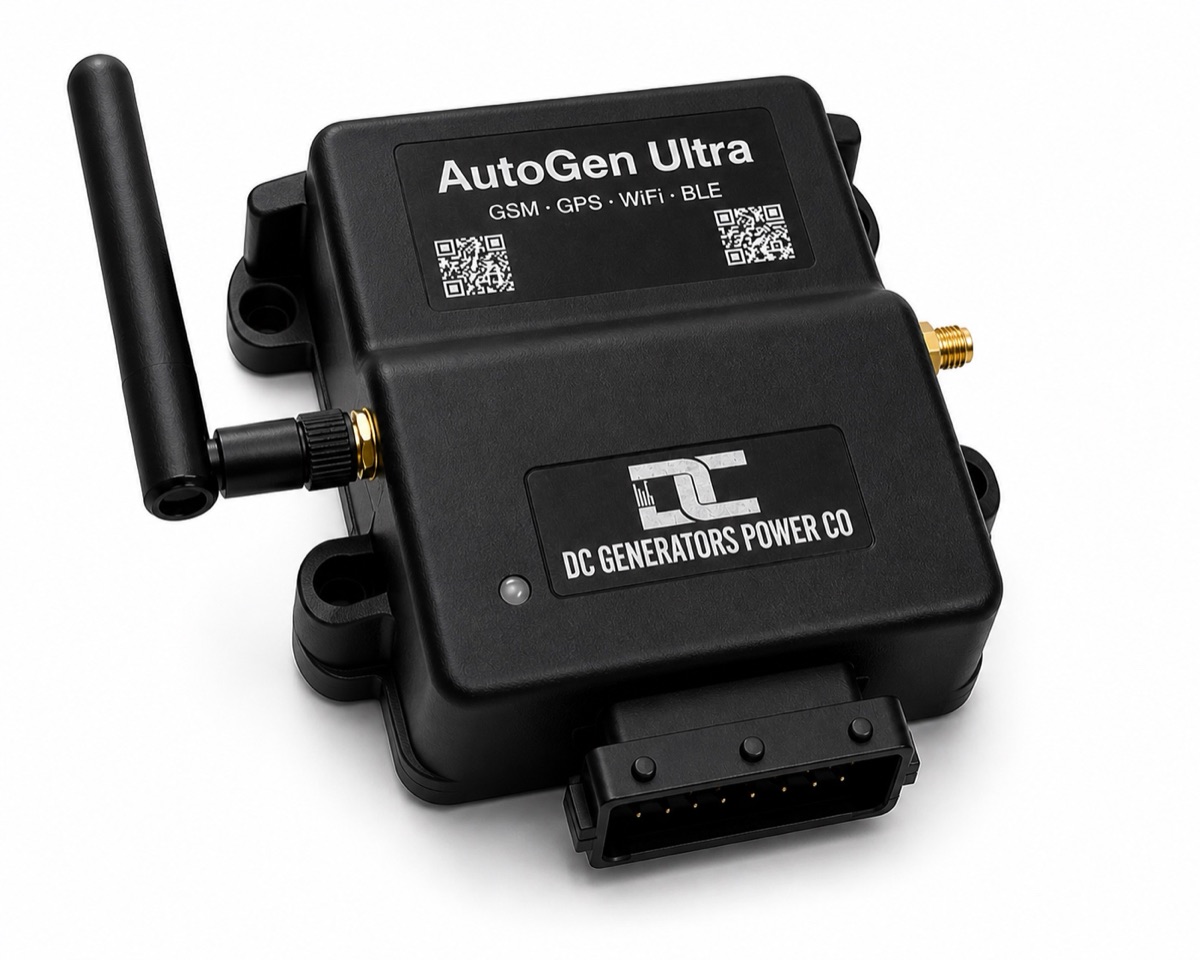
AutoGen Ultra hardware connections
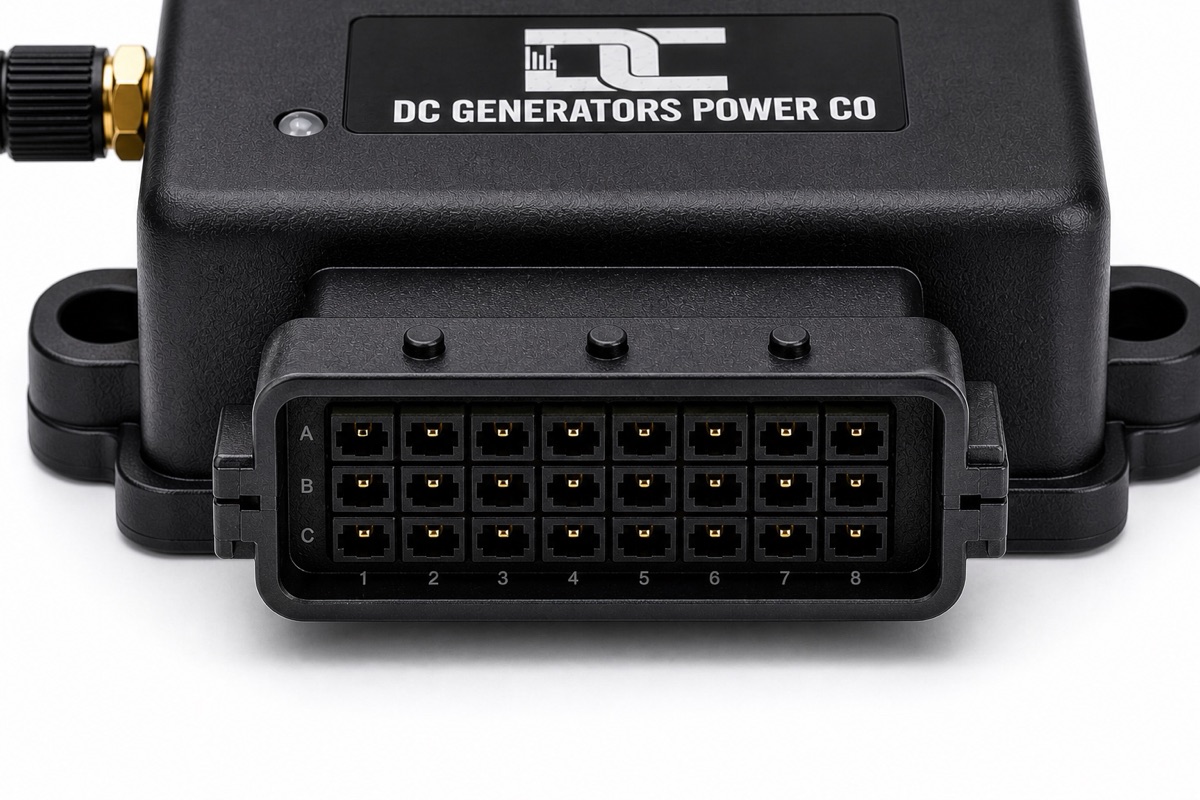
Ultra hardware is built around the Unified controller platform, with 24-pin connector I/O, WiFi/LTE antenna, local controls, status LED, a wide 12-58 VDC power input with over-voltage protection, start/stop/auxiliary relay outputs, two direct 12 VDC actuator channels, 16-bit voltage sensing, optional GPS positioning, and PT100 temperature probes when the control board is fitted.
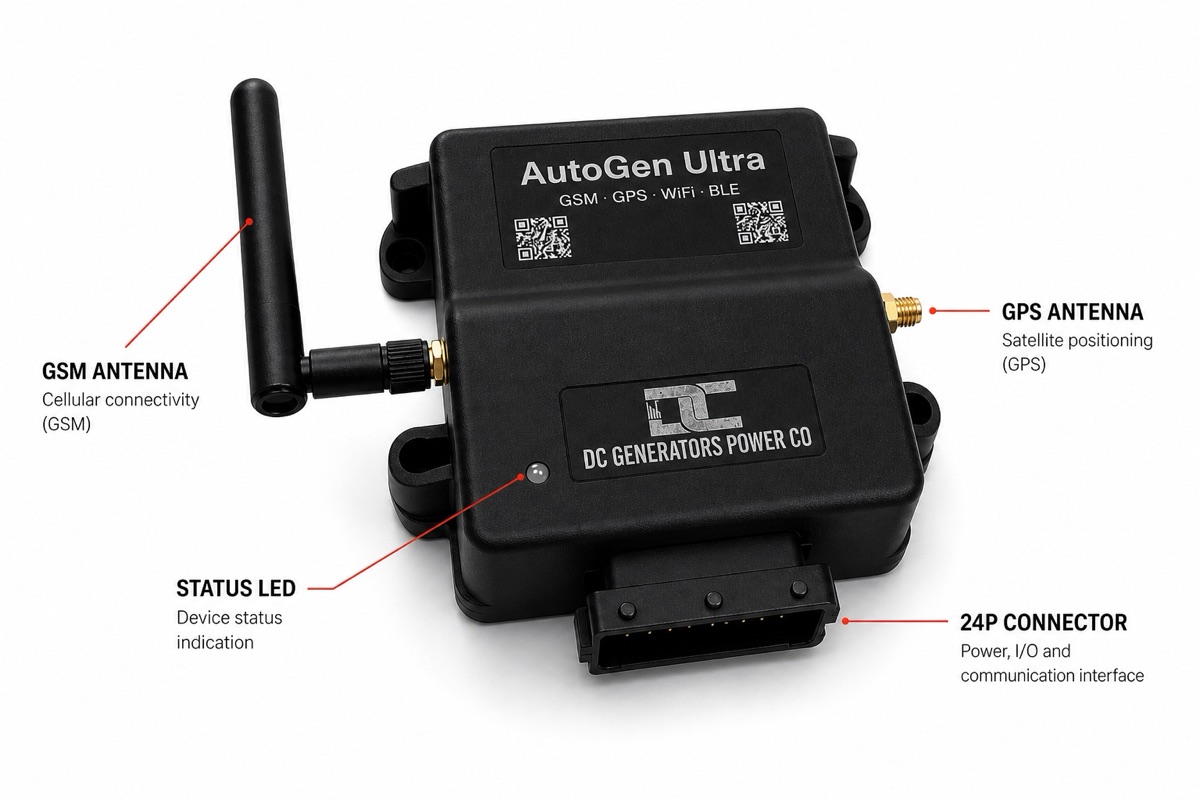
Connector, antenna, and labeled I/O points
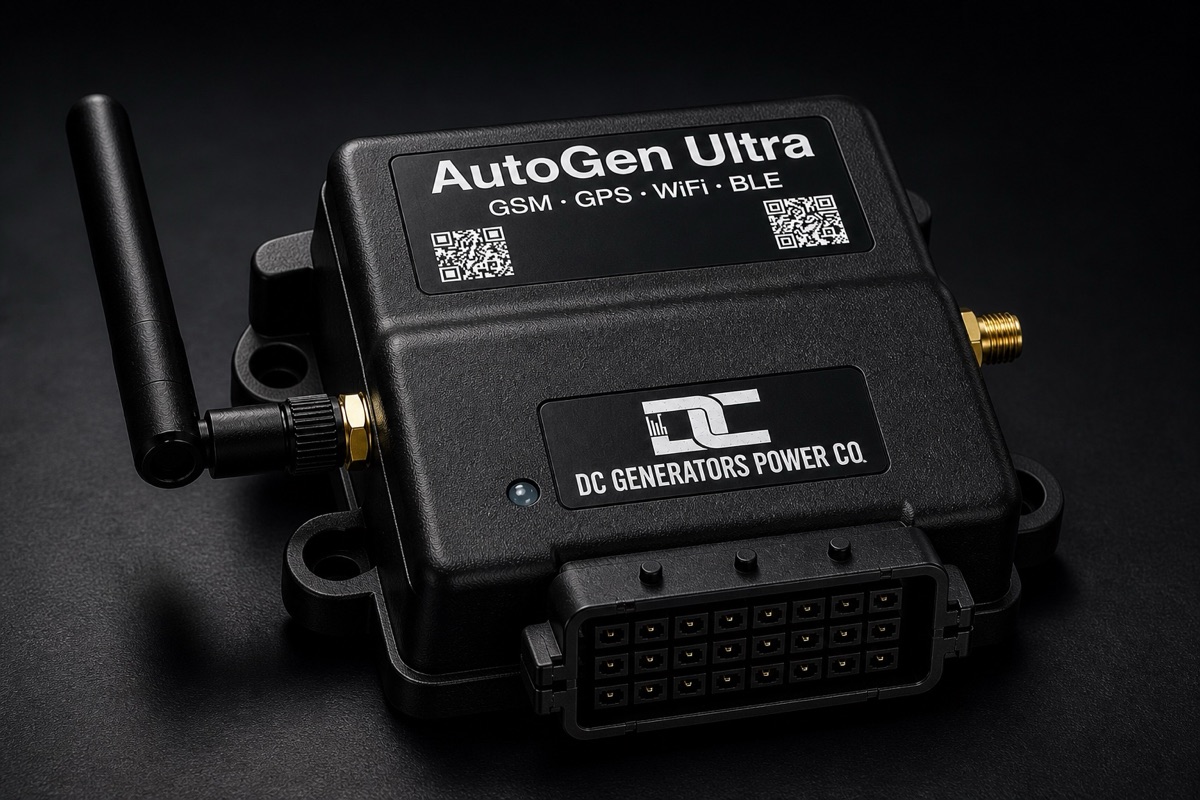
The labeled Ultra hardware overview shows the connector side, antenna location, RGB status LED, and wiring orientation used for relay outputs, run signal confirmation, voltage sensing, actuator wiring, and other installation connections.
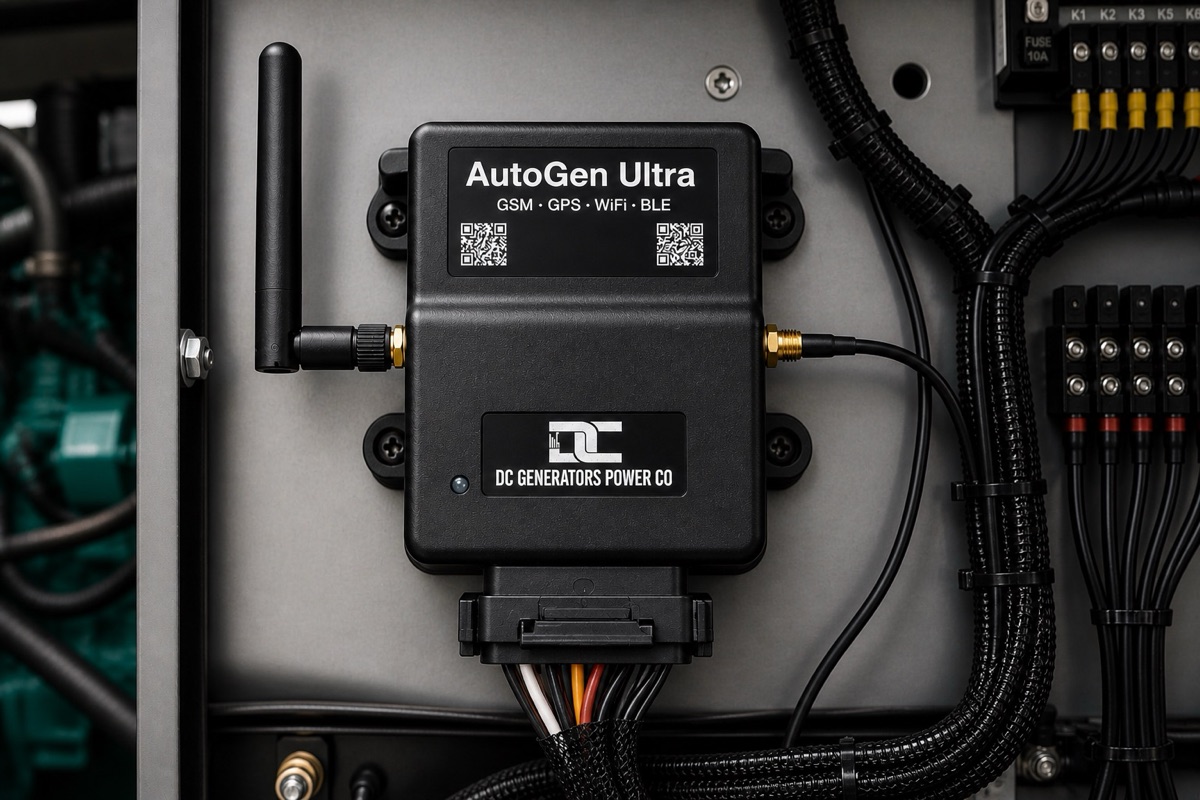
Controller shown with wiring access
This view is useful for judging connector access, enclosure clearance, antenna position, and service reach. It is not a complete installation diagram; final wiring depends on the generator or engine-driven equipment.
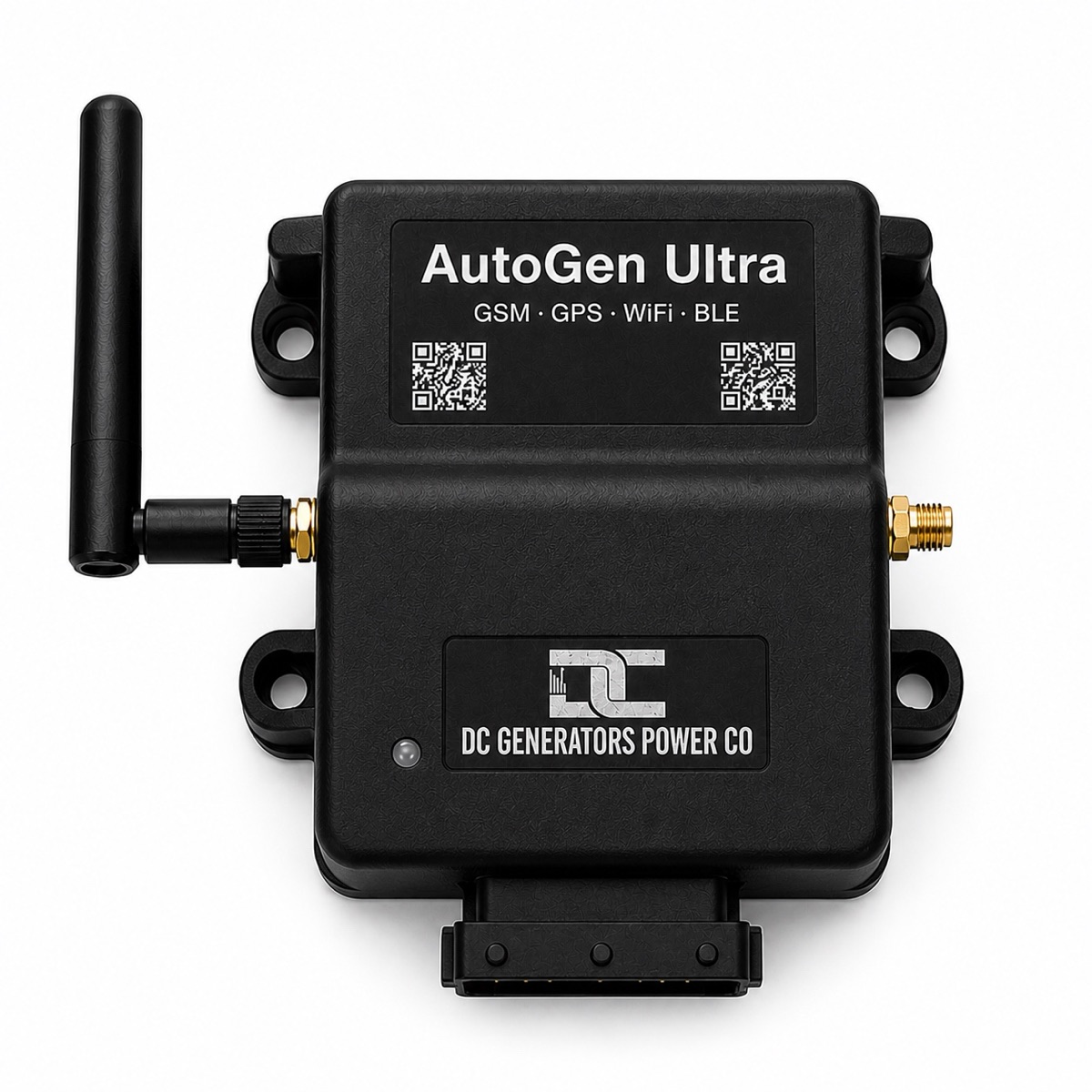
Device ID and dashboard access from QR labels
Labelled QR codes on the enclosure give quick access to the unique device ID and the web dashboard login path, helping dealers, installers, and owners claim the right controller and reach setup tools without hunting through paperwork.
Automatic control with sensing, actuators, and protection.
Ultra does more than toggle a relay. It starts from configured conditions, controls the start sequence, manages choke actuator movement on compatible gasoline engines, checks the configured run signal, can use oil-pressure logic where fitted, monitors available voltage/current/temperature data, and can drive actuator channels for choke, throttle, kill, or other supported engine controls.
Starts from real operating conditions
Battery-bank voltage, two-wire external start logic, weekly schedules, temperature rules, local controls, and approved remote commands can be used to request a run.
Manages choke during gasoline starts
Ultra supports automatic choke and throttle control for compatible gasoline engines. Using the proven starting approach developed for V100 AutoGen, it can distinguish between cold starts and warm restarts, adjust the choke in stages, confirm that the engine is running, and retry when necessary. This gives a standard gasoline engine a more reliable automated starting process without manual choke adjustment.
Confirms running before reporting success
A start command is not treated as success just because the starter relay was energized. Ultra can use calibrated AC or DC run-signal detection, plus oil-pressure logic where fitted, before it reports the engine as running.
Protects the equipment while it operates
Ultra monitors the signals that matter while the equipment is running. It can identify a failed start, loss of the running signal, oil-sensing faults where enabled, excessive temperature, and other unsafe conditions, then place the system into a protective fault state. Available monitoring includes precise 16-bit battery-voltage sensing, CAN voltage where supported, DC current where fitted, engine, alternator, and environment temperatures, runtime, service data, and firmware version.
Claim it, connect it, then verify live data.
The normal setup path is QR claim, WiFi or LTE cloud connection, BLE/local access when needed, cloud verification, then generator-specific settings for voltage thresholds, run confirmation, schedules, sensing, and optional controls.
Claim by QR code
Scan the controller QR code in the AutoGen Pro app, confirm the unique device ID, and use a clear site name such as Home Generator, Workshop Backup, or Site 2 Ultra.
Provision WiFi or set Cellular APN details
Use BLE nearby setup for WiFi provisioning, Cellular APN details, device ID checks, calibration, diagnostics, and local setup commands when the installation needs them.
Confirm cloud readings
Open the app or web dashboard and confirm battery voltage, controller state, run confirmation, runtime, firmware version, and available sensor readings are updating.
Set the operating rules
Set start voltage, stop voltage, AC/DC run confirmation, temperature protection thresholds, weekly schedules, service/runtime values, and optional actuator or relay behavior for the installation.
Actuator, pressure, GPS, and temperature options.
Ultra is selected when the job needs integrated hardware functions that a basic start/stop controller does not provide.
More than start and stop relays.
Ultra can directly operate two 12 VDC actuators for choke, throttle, engine stop, or other supported controls. On a compatible gasoline engine, it can manage cold and warm start sequences by positioning the choke, cranking the engine, confirming it is running, and retrying when necessary. For applications such as engine-driven water pumps, a pressure sensor can work with throttle control to maintain a configured pressure range. Optional PT100 hardware adds engine, alternator, and environment temperature monitoring, while an optional GPS module provides location data for supported fleet and remote-site installations.
The AutoGen platform, applied to premium connected generator control.
Ultra uses the connected AutoGen platform for live telemetry, schedules, settings, device management, firmware workflows, API access, and dealer support.
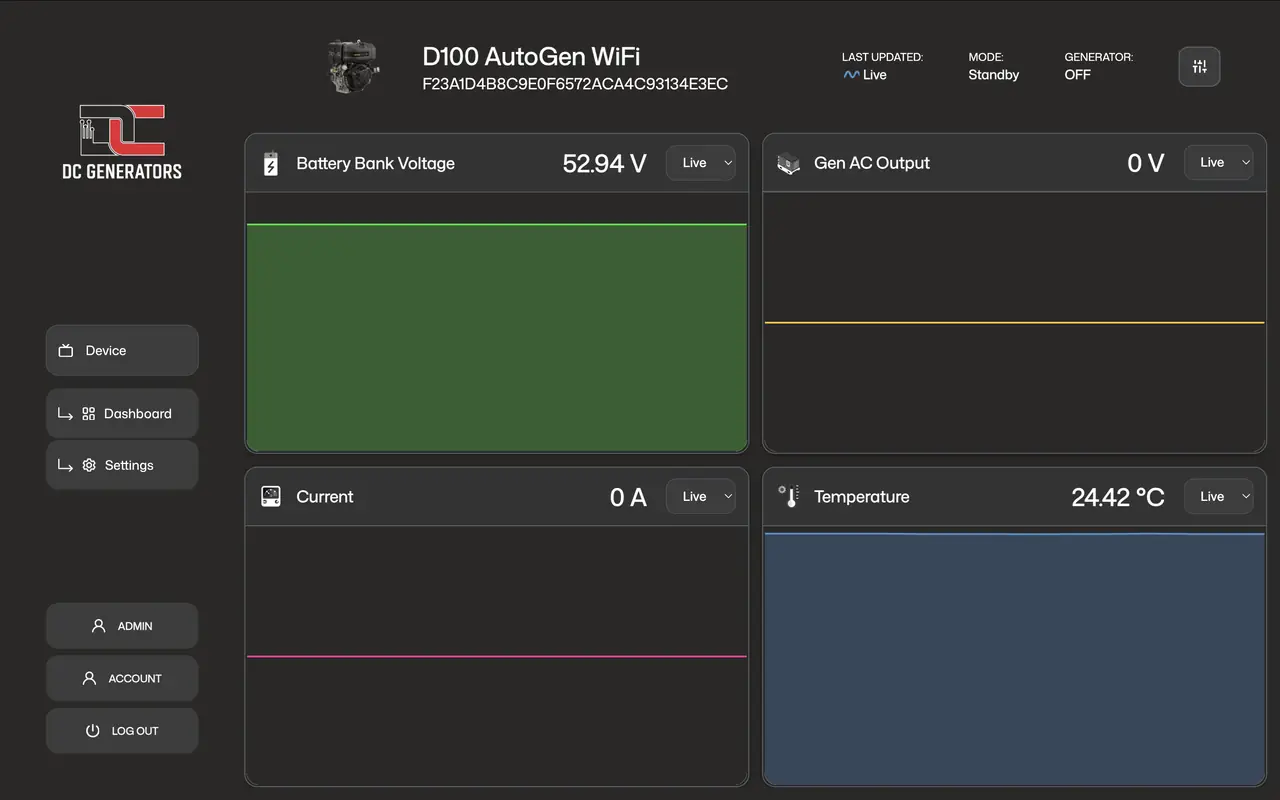
Telemetry dashboard
Live state, voltage, runtime, and operating data help owners and dealers monitor charging behavior clearly.
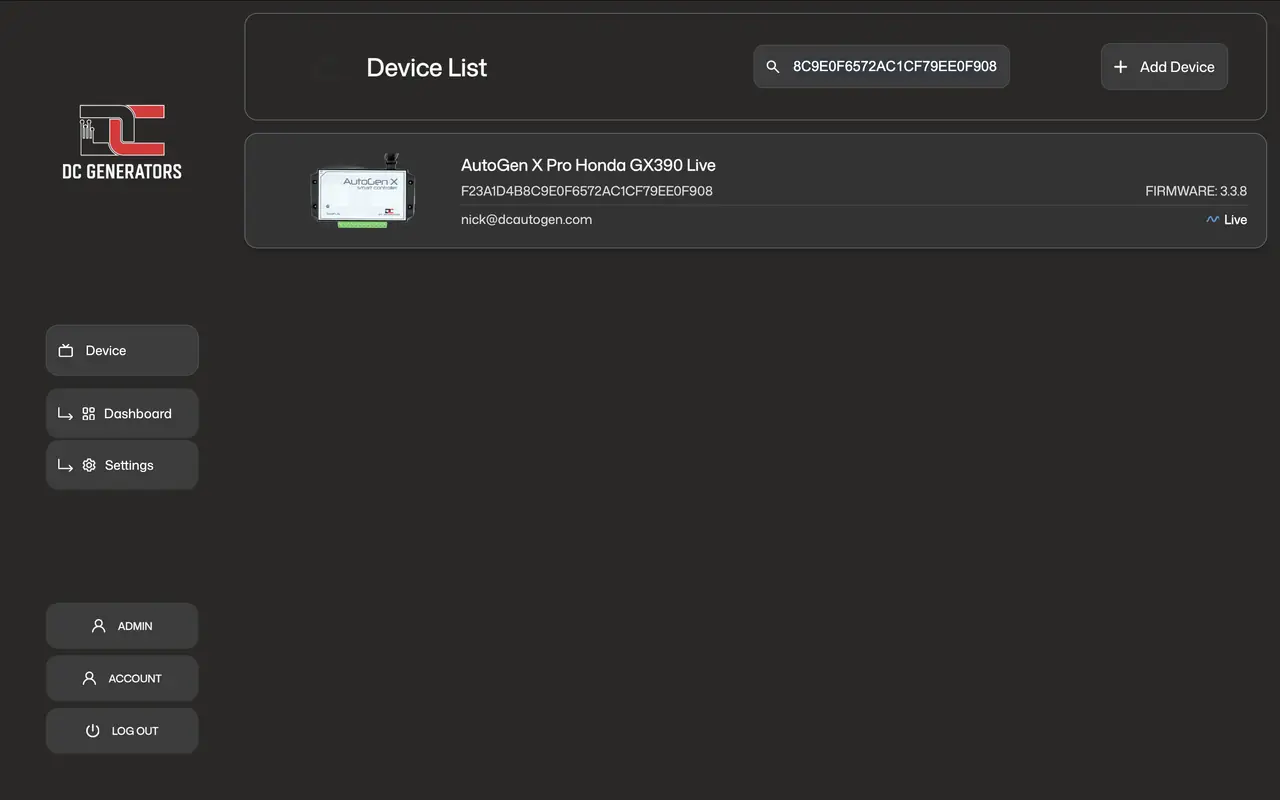
App device access
Owners, installers, and support teams can identify and access the correct AutoGen device quickly.
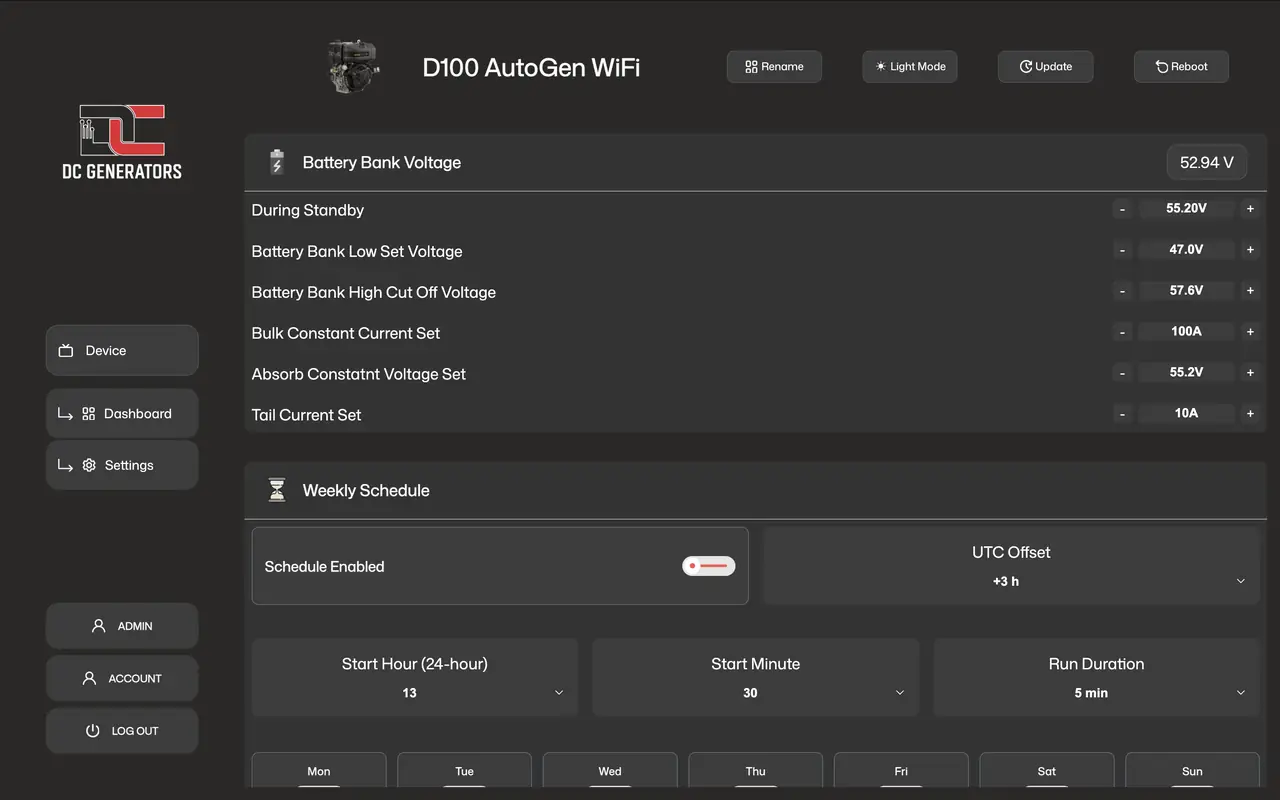
Schedules and settings
Supported settings can cover charging profiles, scheduled runtimes, start and stop behavior, and installed hardware options.
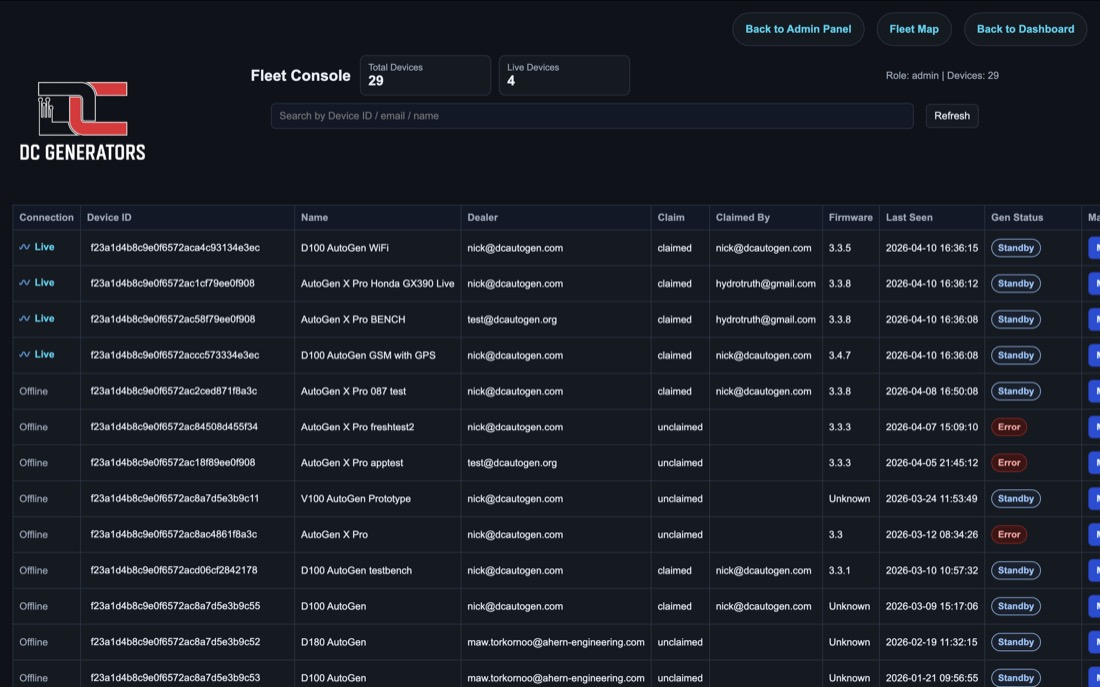
Dealer fleet support
Ultra can fit managed WiFi or LTE deployments where remote visibility, diagnostics, and service workflows matter.
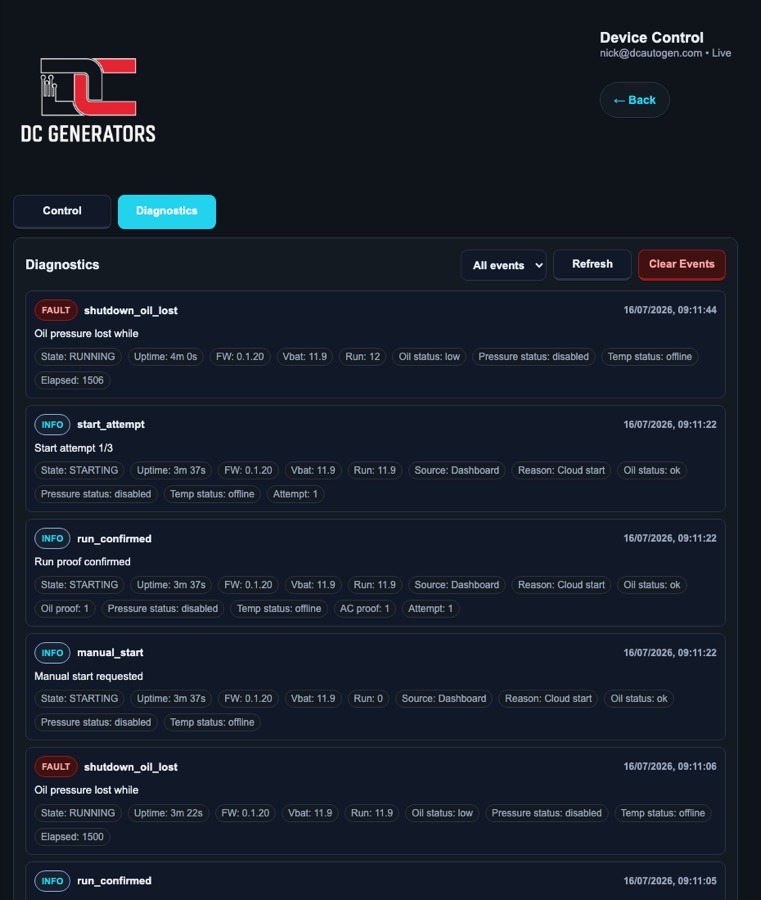
Diagnostic events
Event history helps confirm starts, stops, run confirmation, faults, resets, communication state, firmware actions, and controller behavior during field support.
Choose Ultra when the installation needs more than WiFi control.
Ultra is the stronger controller path when the site needs WiFi or LTE cloud access, local BLE/AP support, 16-bit voltage sensing, CAN voltage where available, two direct 12VDC actuator channels, PT100 temperature protection, GPS positioning when fitted, OTA firmware workflows, and dealer or fleet support.
Best fit
Remote power sites, farms, cabins, workshops, backup systems, and engine-driven equipment such as pumps that need connected control, sensing, protection, and actuator capability in one controller platform.
Why Ultra over X Pro
Choose Ultra when the deployment needs LTE-capable cloud access, oil/run-signal sensing, 2 x direct 12VDC actuator channels, actuator-driven choke/throttle/kill movement where supported by the selected firmware and configuration, PT100 temperature protection, GPS positioning, added features, calibration, and diagnostics through BLE terminal commands.
When X Pro is enough
Choose X Pro when the generator already has suitable electric-start wiring and the site mainly needs WiFi cloud control, local setup access, schedules, external trigger logic, and run confirmation.
Setup, controls, and technical references.
These references cover Ultra wiring, local setup, dashboard controls, operating settings, API access, and advanced hardware configuration.
Wiring and connection reference
Use the dedicated Ultra wiring reference to identify controller power, start, stop, and auxiliary relay outputs, run confirmation, voltage sensing, two direct 12 VDC actuator channels, PT100 control-board connections, and optional oil- or pressure-sensing inputs.
BLE setup, local access, and API integration
Use BLE to connect Ultra to the site WiFi network and complete nearby setup. If internet access is unavailable, WiFi Local AP provides direct access from a phone, tablet, or browser. Approved API integrations can read supported telemetry and use permitted controls.
View example API telemetry
{
  "device_type": "ultra",
  "success": true,
  "telemetry": {
    "battery_voltage": 55.24,
    "run_signal": 230.34,
    "engine_temp_c": 82.4,
    "alternator_temp_c": 64.1,
    "environment_temp_c": 31.8,
    "total_hours": "0217:47:12"
  }
}
Remote controls
From the app or web dashboard, the available action follows the controller state: start when ready, stop while running, or reset after a fault. Ultra confirms the result before reporting the command as complete.
View controls
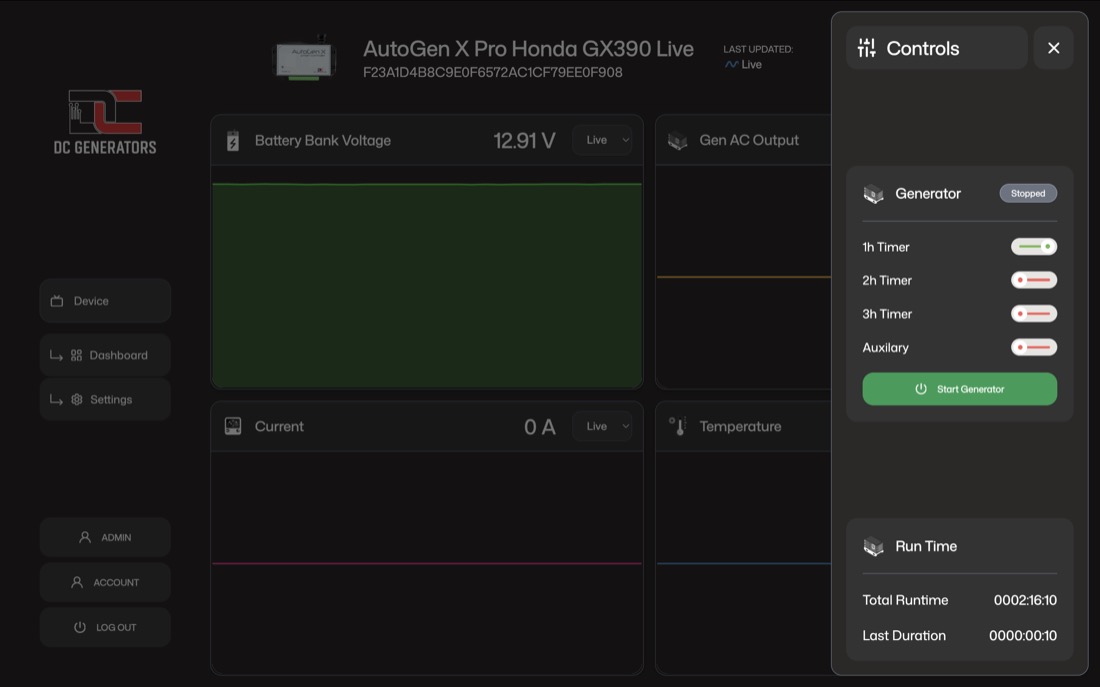
Operating settings and advanced setup
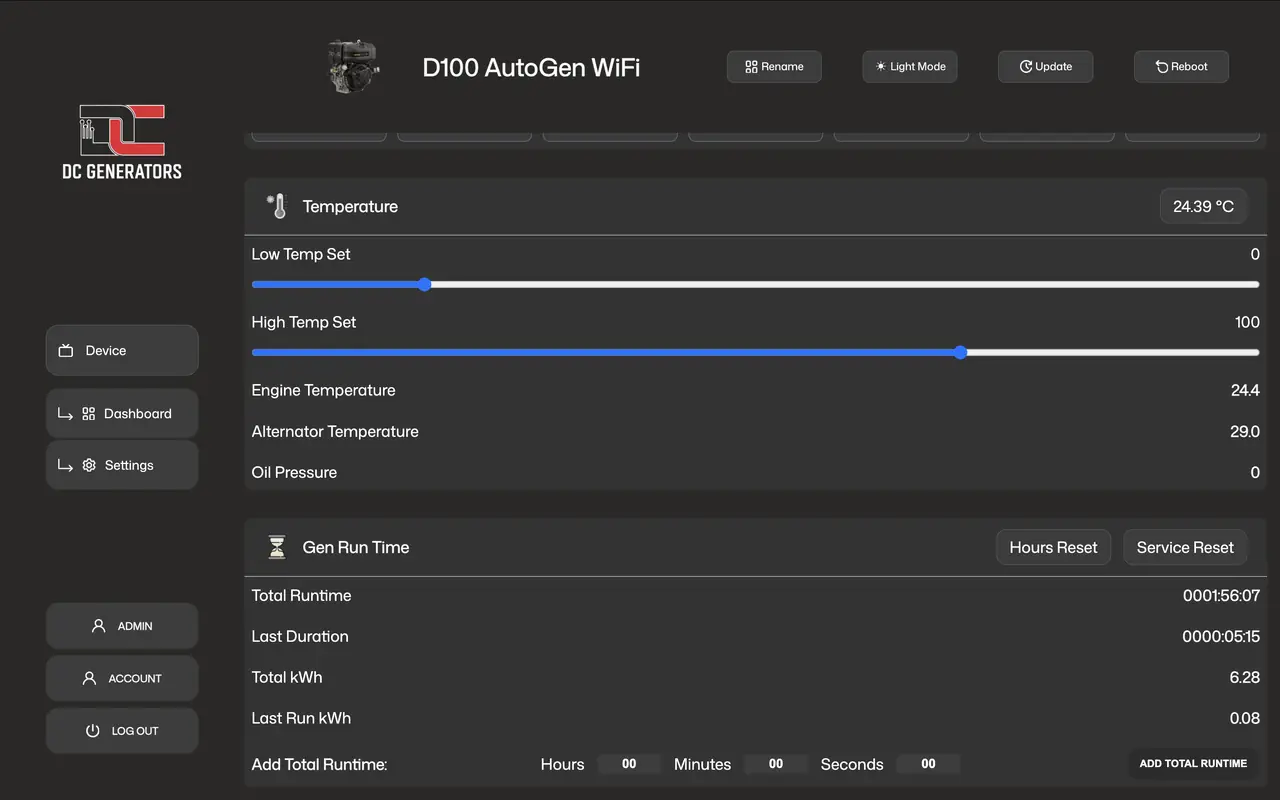
Use the web dashboard for everyday settings such as start and stop voltage, run confirmation, temperature limits, external start input, weekly schedules, timed runs, runtime, and service records. Advanced hardware options, including actuator direction and oil-sensing behavior, are configured through BLE terminal commands when required.
View settings
Confirm the installation needs Ultra hardware.
Ultra makes sense when the job needs cellular-capable cloud access, direct 12VDC actuator control, richer sensing, temperature protection, fleet visibility, or field diagnostics. If the site only needs simple WiFi start/stop control with run confirmation, X Pro may be the cleaner choice.
Check the wiring and control method first
Confirm the equipment start/stop method, run signal, battery voltage, required relay outputs, and whether choke, throttle, kill, pressure, oil, or temperature sensing must be connected.
Choose options around the actual site
Select WiFi or LTE access, GPS if location tracking matters, PT100 temperature protection if engine or alternator heat must be monitored, and actuator outputs only when the equipment needs physical movement control.
Common questions about AutoGen Ultra.
Ultra combines flexible connectivity, managed start control, and expanded sensing and actuator support for demanding generator and engine-driven applications.
Does Ultra need WiFi or LTE for cloud access?
Ultra is available with WiFi or LTE cloud connectivity. BLE is used for nearby setup, while WiFi Local AP provides direct access from a phone, tablet, or browser when an internet connection is unavailable.
Can Ultra start, stop, and reset remotely?
Yes. When Ultra is online, a user with control access can start, stop, or reset the connected equipment from the AutoGen Pro app or web dashboard.
What happens if start confirmation never arrives?
Ultra checks that the engine is running after each start attempt. If confirmation does not arrive, it retries the start sequence and stops with a fault if the engine still does not start.
What makes Ultra different from X Pro?
Ultra is designed for installations that need more control and monitoring than X Pro. It adds WiFi or LTE connectivity, a wide 12-58 VDC protected power input, precise 16-bit voltage sensing, CAN voltage support where available, two direct 12 VDC actuator channels, optional PT100 temperature monitoring, an LTE-only GPS option, additional relay I/O, and advanced setup and support tools.
Not sure whether Ultra fits your generator?
Send the generator or engine-driven equipment model, start/stop method, battery voltage, available WiFi or LTE requirement, run-confirmation method, and any actuator, pressure-sensing, GPS, PT100 temperature, oil-sense, or current-sensing requirements.
info@dcautogen.org